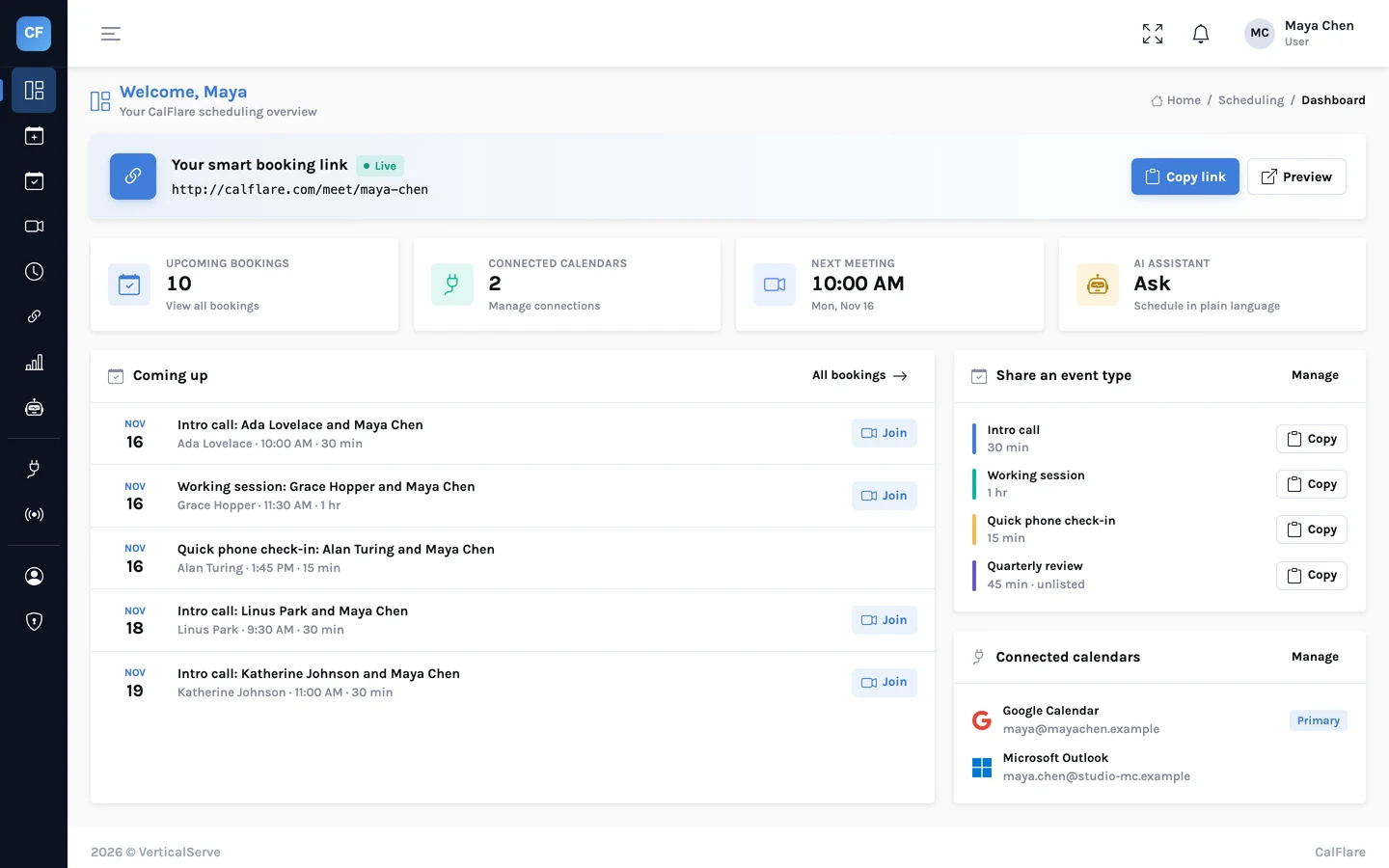
CalFlare does one job: it lets someone book time with you without the two of you trading emails about when. You connect a calendar, set your hours and share a link. They pick a time that is really free.
That job has not changed. Almost everything around it has. This post walks through the new CalFlare in the order you will meet it, and ends with a plain list of what it does not do yet.
The short version
| Area | What is new |
|---|---|
| Event types | Up to 30 kinds of meeting, each with its own link, length, place, questions and limits |
| Availability | Several time ranges a day, date overrides, and limits per event type |
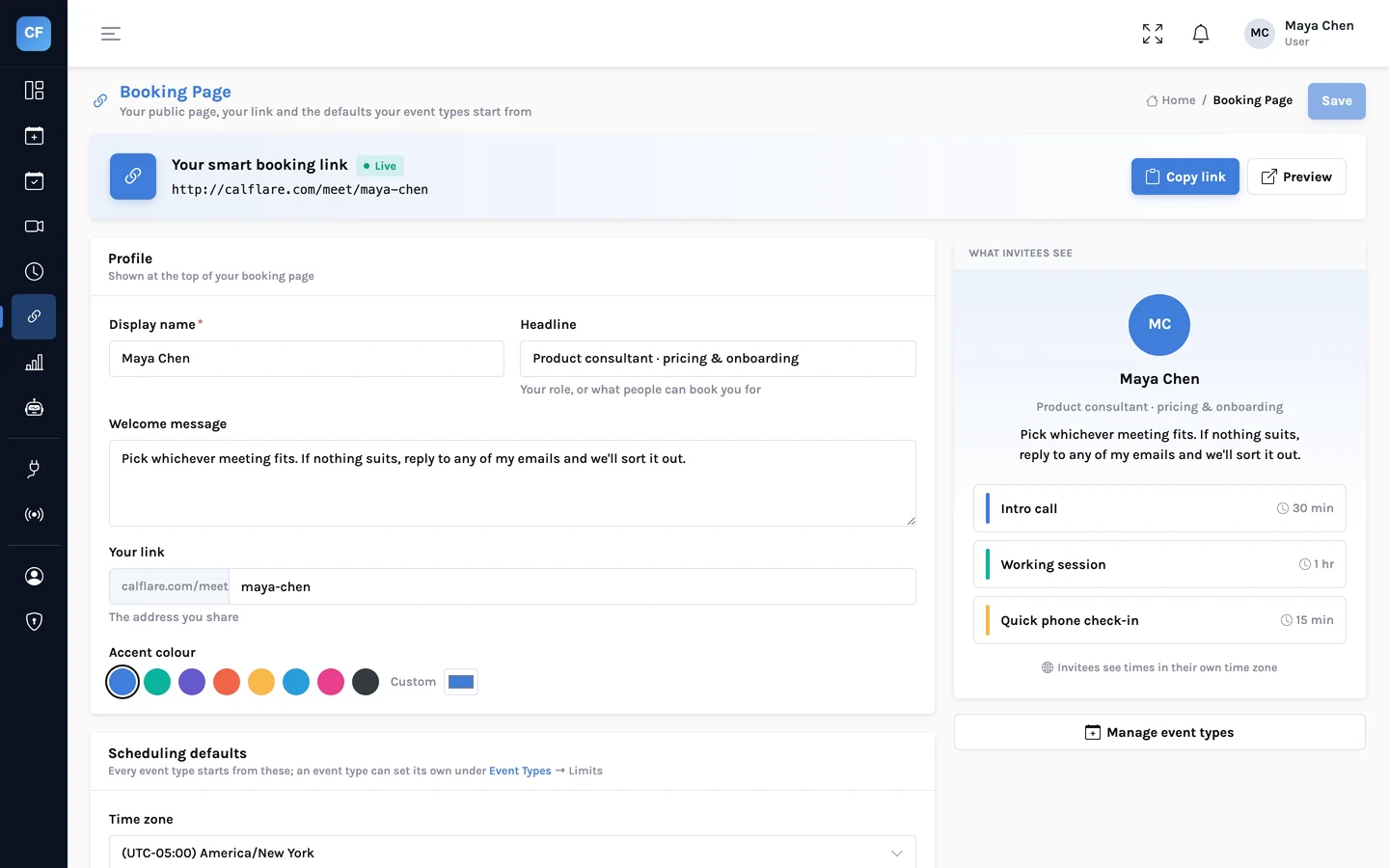
| Booking page | Your own link name, profile and accent colour; times in the invitee's time zone |
| After booking | A manage link to reschedule or cancel, reminder emails, calendar files |
| AI assistant | Manage your schedule in plain language; invitees can chat to find a time |
| Sharing | Inline embed and popup button for your website; prefilled links |
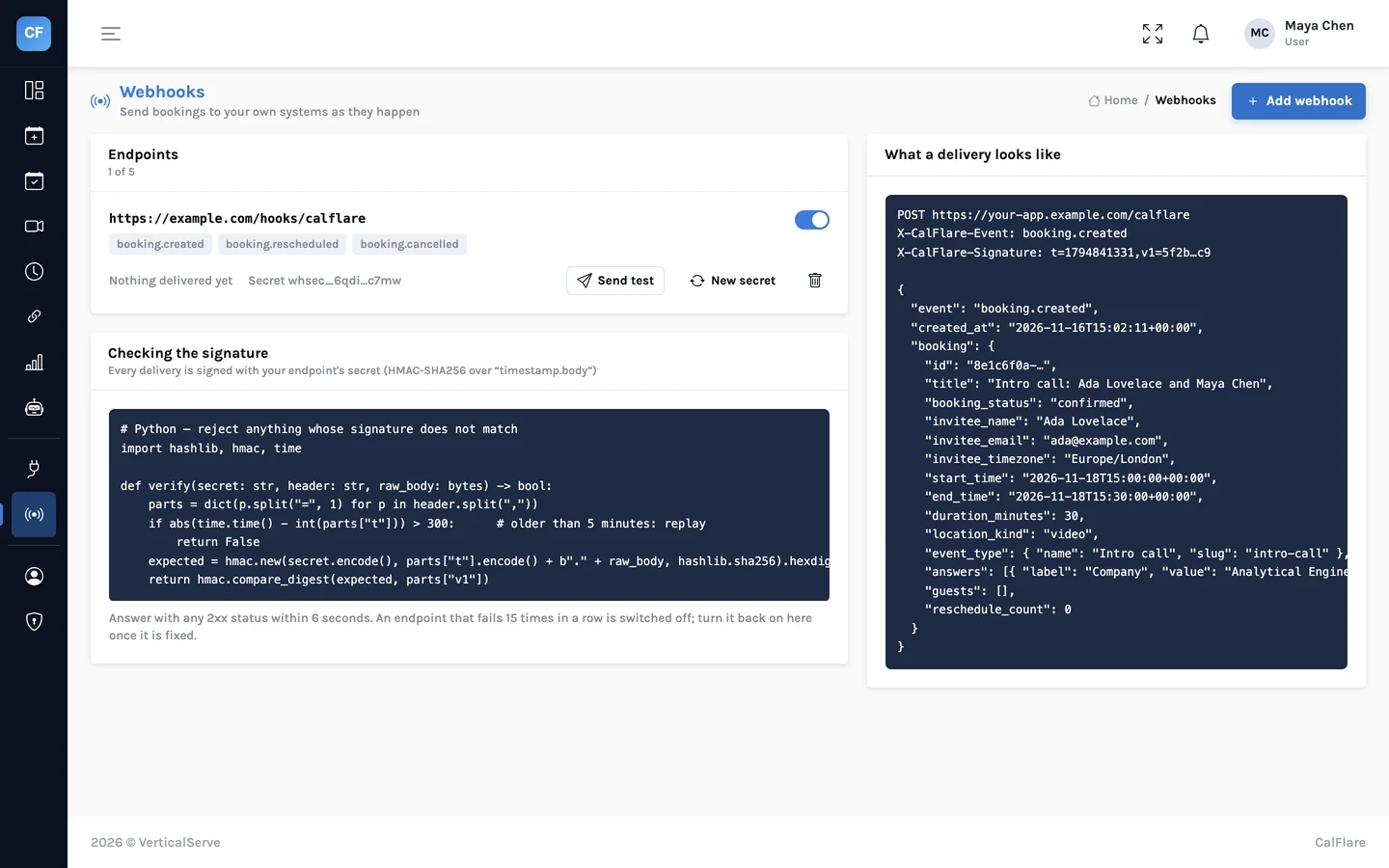
| Webhooks | Signed events when a booking is created, rescheduled or cancelled |
| Analytics | Bookings over time, outcome rates, busiest hours, CSV export |
Event types: one link per kind of meeting
The old idea of "my availability" treats every meeting alike. Real calendars do not work that way. A first call with a stranger should be short, need a day's notice and never happen five times in one day. A working session with a client is long and welcome any time.
An event type holds those differences. Each one has a name, a description, a colour and a length from 5 minutes to 8 hours. Each has a place: a video link that your connected calendar creates (Google Meet or Microsoft Teams), a phone call, an address, or a meeting link of your own, such as a Zoom room, which is shown only after booking.
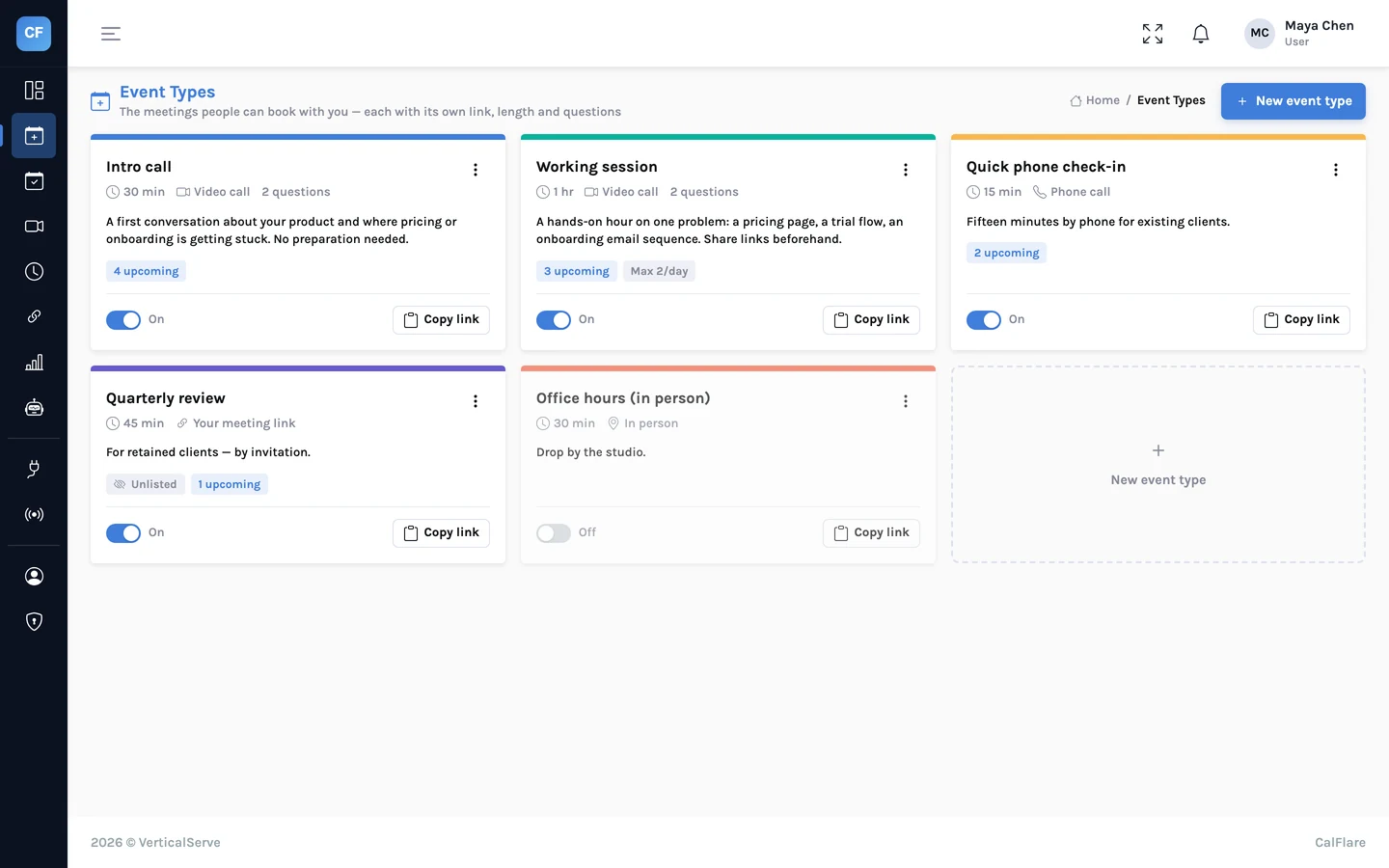
Each event type also carries its own limits: how far apart start times are, the buffer before and after, the minimum notice, how far ahead it can be booked, and the most bookings in a day. You can add up to 10 intake questions, a confirmation message, and a redirect to your own page once the booking is made. Three complete setups, with the exact settings.
Availability that matches a real week
Weekly hours now take several ranges a day, so a lunch break is a gap and not a workaround. Date overrides handle the exceptions: mark one date as off, or give it different hours, and the weekly pattern carries on the next day.
You set hours in your time zone. Invitees see them in theirs, and daylight saving is handled on both sides. Busy time from every calendar you connect, Google or Microsoft, is removed before anyone sees a slot.
A booking page people can use in ten seconds
The invitee needs no account. They choose a meeting, pick a day from a month calendar, pick a time, and give a name and email. They can add up to 5 guests and a note. When they confirm, the server checks the slot against your calendar again, so a time that was taken a moment ago cannot be booked twice. How that check works.
After the booking: the part that used to be email
Confirmation
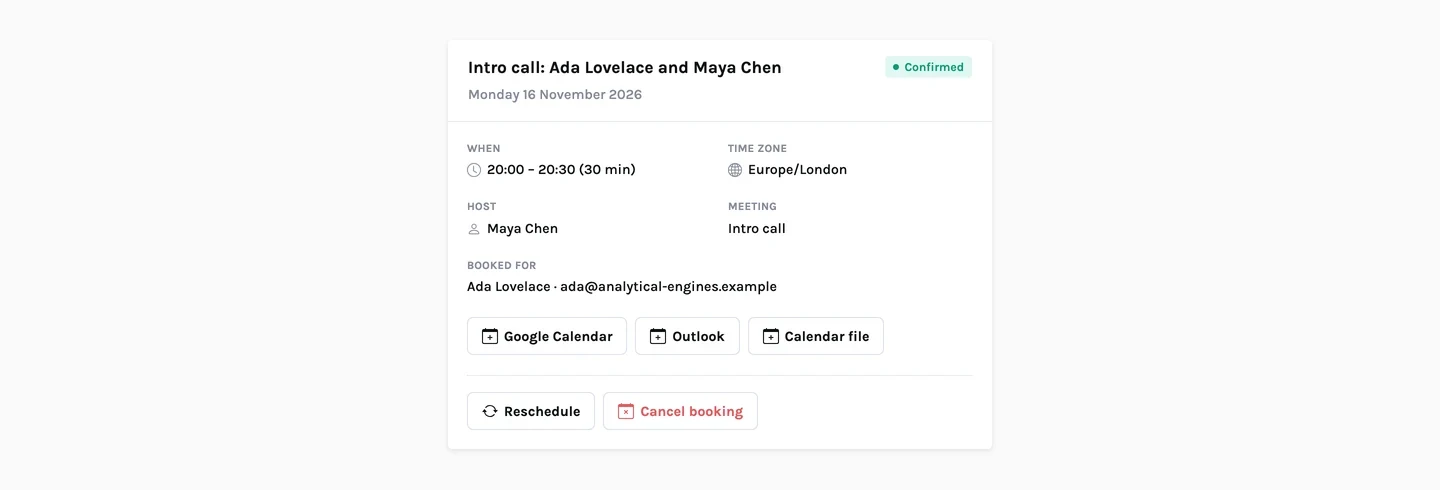
Both of you get an email with the time in your own time zone and a calendar file attached. The invitee also gets "Add to Google Calendar" and "Outlook" links.
Reschedule and cancel
The invitee's email includes a private manage link. From it they can move the meeting to another open time or cancel it, without an account and without writing to you. You can do the same from the console, cancel with a reason, or mark a no-show.
Reminders
Reminder emails go out about 24 hours and about 1 hour before the meeting. If you prefer silence, one switch turns them off.
An assistant that works inside the rules
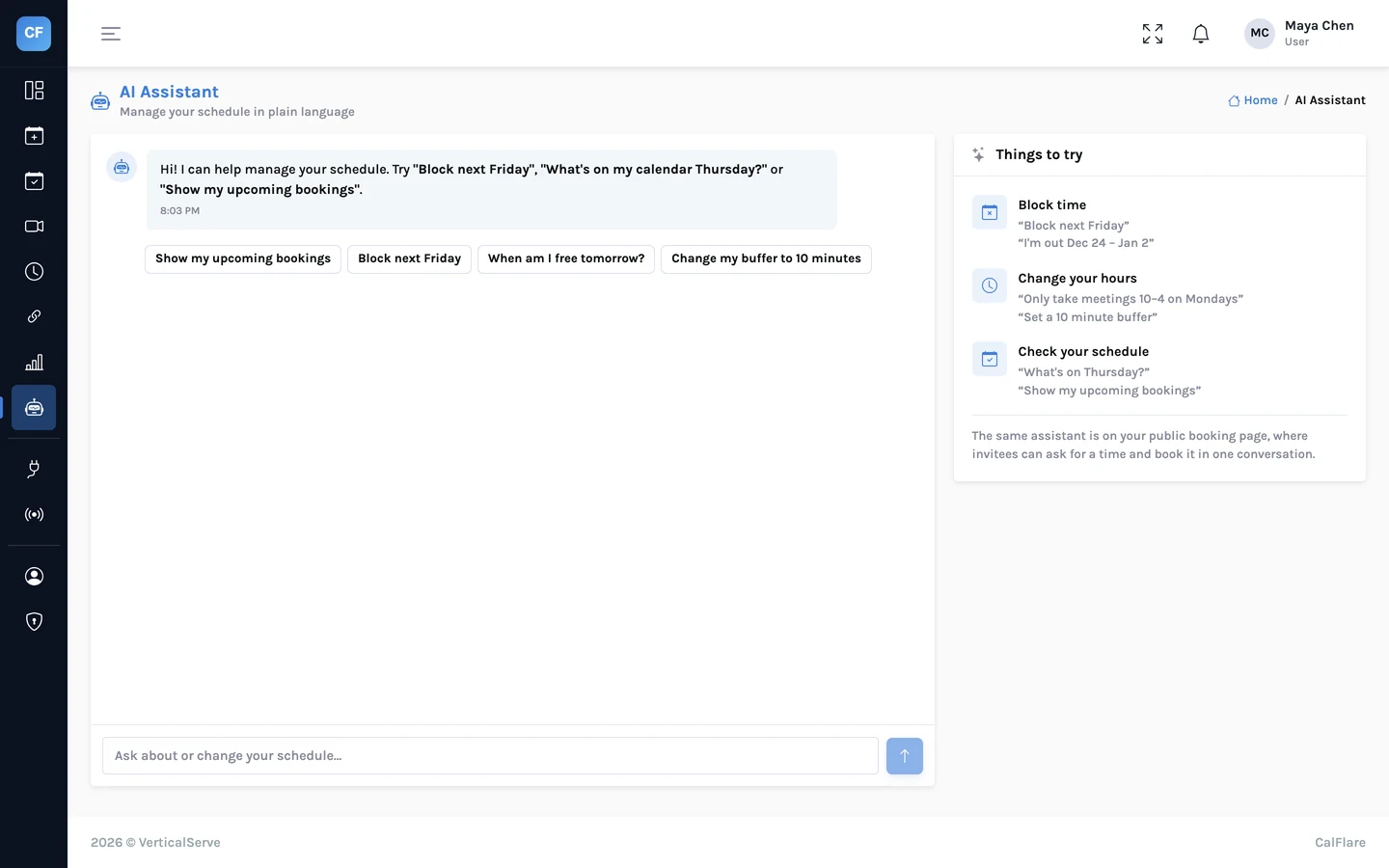
In the console you can type "block Friday afternoon" or "what's on next week" and the assistant does it or answers. On your booking page, an invitee can chat to find a time if they would rather not use the calendar.
It cannot go around your availability
The assistant can only offer and book times that are open. A booking made in chat passes the same server-side checks as one made with the form, and usage is capped per day. What it can and cannot do.
Your website and your own systems
- Embed. Put the booking page inside a page on your site, or add a "Book a time" button that opens it in a small window. The snippets.
- Webhooks. Up to 5 HTTPS endpoints receive a signed message when a booking is created, rescheduled or cancelled. Payload and verification code.
- Analytics. Bookings over time, completed, cancelled and no-show rates, busiest weekdays and hours, a breakdown by event type, and a CSV export.
What is not there yet
These do not exist in CalFlare today. Some are planned. None should influence your decision as if it were here.
- Team scheduling: round-robin and collective events
- Paid bookings through Stripe or PayPal
- Routing forms and meeting polls
- Native Zoom or Webex integration (a custom Zoom link per event type does work)
- SMS reminders and native mobile apps
- Salesforce and HubSpot integrations, and a Zapier app (webhooks exist)
- Single sign-on and recurring bookings
The comparison page sets this list beside what typical scheduling tools offer.
We would rather tell you what is missing than have you find out after you have shared the link.
A sensible first ten minutes
- Create an account and connect your Google or Microsoft calendar.
- Set your weekly hours. Add a second range if you break for lunch.
- Create one event type: 30 minutes, video, a 4-hour minimum notice.
- Open your booking link in a private browser window and book yourself.
- Use the manage link in the email to move the meeting, then cancel it.
Start with one event type
Connect a calendar, create a 30-minute meeting and book yourself. CalFlare is free to get started.
Get started free