A booking link has one promise to keep: if it offers a time, you can make it. A double-booking breaks that promise in front of someone you were trying to impress.
There are four ways a double-booking can happen. CalFlare deals with each one separately. None of the fixes is clever. They are just checked in the right place.
| How it could happen | What stops it |
|---|---|
| You have a second calendar the tool does not look at | Busy time from all connected calendars is removed |
| Meetings are booked back to back with no room between | Buffers before and after each meeting |
| The page showed a time that was taken a moment later | The slot is re-checked at the moment of confirming |
| Two people confirm the same time in the same second | Confirmations for one host are handled one at a time |
1. Every connected calendar counts
Most people have more than one calendar: work and personal, or a Google account and a Microsoft one. If a scheduling tool reads only one, the other will collide with it sooner or later.
CalFlare removes busy time from all the calendars you connect, Google Calendar and Microsoft 365 alike. A dentist appointment on a personal calendar closes that time on your booking page exactly as a work meeting does. New bookings are written to your primary calendar.
CalFlare also keeps its own record of every booking. So a meeting booked through your link blocks its time even before your calendar provider has caught up.
2. Buffers keep meetings apart
Two meetings that do not overlap can still be a problem if one ends at 2:00 and the next starts at 2:00. A buffer is free time kept before and after a meeting. A slot is offered only if the meeting plus its buffers fits in a gap.
3. The re-check at the moment of confirming
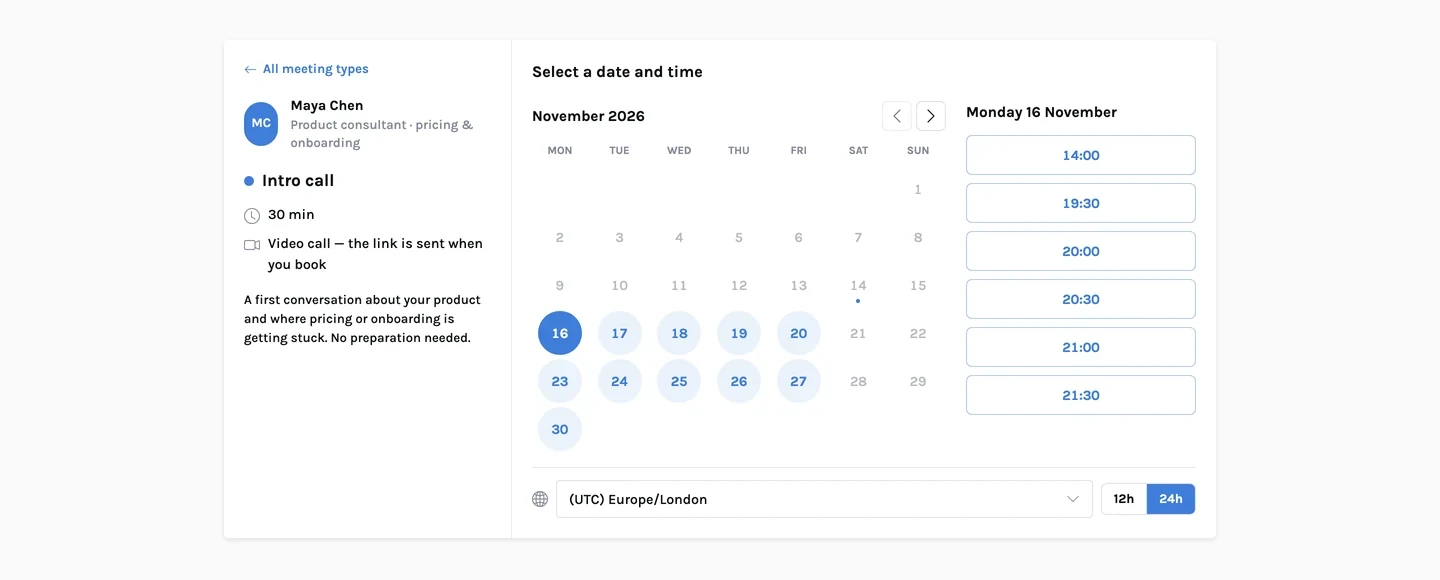
A booking page is a snapshot. An invitee may open it, be called away, and come back ten minutes later. To keep the page fast, the list of times can also be up to a minute old when it is shown. In that time, anything can change.
So the page is never trusted. When the invitee presses confirm, the server works out your open times again, reading your calendars fresh, and books the meeting only if the chosen time is still among them.
If the time has gone, the invitee sees: "This slot is no longer available. Please choose another time." Nothing is booked and no email is sent. They pick again from an updated list.
This check is the same one for every way of booking. The form, the AI assistant on your booking page and a reschedule from a manage link all go through it. There is no side door that skips it.
4. Two people, one slot, the same second
The re-check has a gap of its own. Imagine two invitees who both confirm 2:00 on Thursday at the same instant. Both checks run. Both find 2:00 free, because neither booking exists yet. Both book. This is a race, and checking harder does not fix it.
What fixes it is a queue. While one confirmation for a host is being checked and saved, any other confirmation for the same host waits. They are handled one after another, never side by side.
The queue is per host
One host's bookings never wait behind another's. The queue exists only to put two confirmations for the same person in order.
What this does not cover
No scheduling tool can see what it has not been shown. A few honest limits:
- A calendar you have not connected. If it is not connected, its events cannot block anything.
- Plans that are not on any calendar. Use a date override to close a day or part of one.
- Something you add after a booking is made. If you accept a conflicting invitation later, both events will sit on your calendar. CalFlare stops conflicts at booking time. It does not rearrange your calendar afterwards.
The summary
The page suggests. The server decides, with fresh calendar data, one confirmation at a time.
To see how limits shape the list before anyone confirms, read Buffers, notice and daily limits. For the rest of the controls on a public booking page, see Security.
Test it yourself
Open your booking link in two browser windows, pick the same time in both and confirm one after the other. Only the first will book.
Get started free