Some scheduling tasks are quicker to say than to click. "Block Friday afternoon" is three words. Doing it by hand means opening availability, finding the date, adding an override and choosing the hours.
CalFlare has an assistant for those moments. Hosts use it in the console. Invitees can use it on a booking page. This post shows what a conversation looks like on each side, and spends as long on what the assistant cannot do, because that is the part that makes it safe to switch on.
For hosts: say what should change
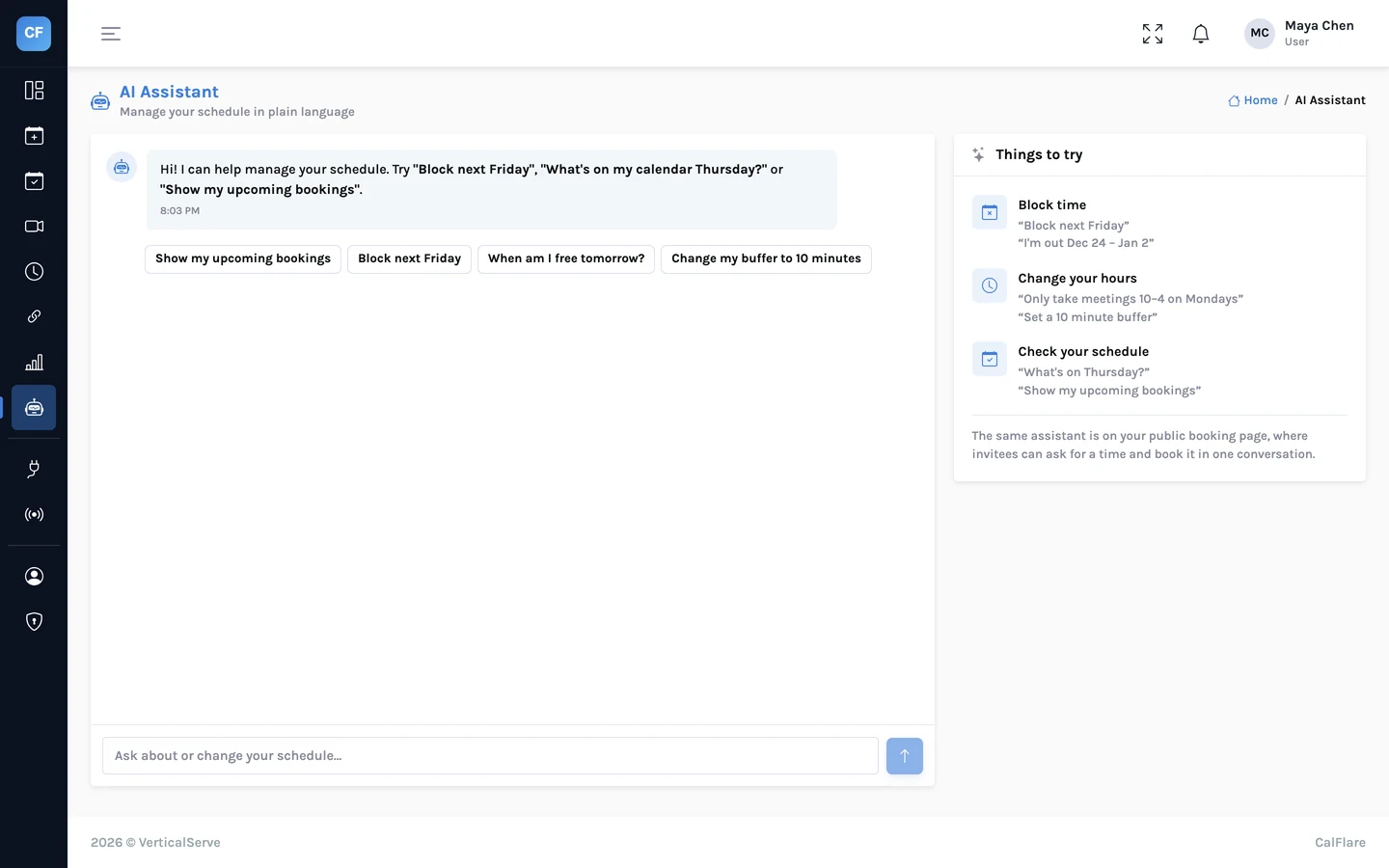
In the console, the assistant understands requests about your own schedule.
| You can ask it to | For example |
|---|---|
| Block time | "Block Friday afternoon" or "I'm out on the 24th" |
| Open time | "Open Saturday morning this week" |
| Change a scheduling preference | "Make my minimum notice 4 hours" |
| Show what is coming up | "What's on next week?" |
| Check open times | "Do I have anything free on Thursday?" |
Each of those replies reports a change to the same settings you would edit by hand. The block is a date override. The notice is a scheduling preference. You can open the Availability screen and see them, change them or remove them.
Check what it did
The assistant reads your sentence and decides what you meant. Usually that is obvious. Sometimes it is not: "Friday" could be this week's or every Friday. Read the reply. It says what was changed. If it is not what you wanted, say so or fix it on the Availability screen.
For invitees: a chat instead of a calendar
On your booking page an invitee can choose to chat. They describe when they are free, the assistant offers open times, and it books the one they pick once it has a name and an email address. The calendar is still there for anyone who prefers it.
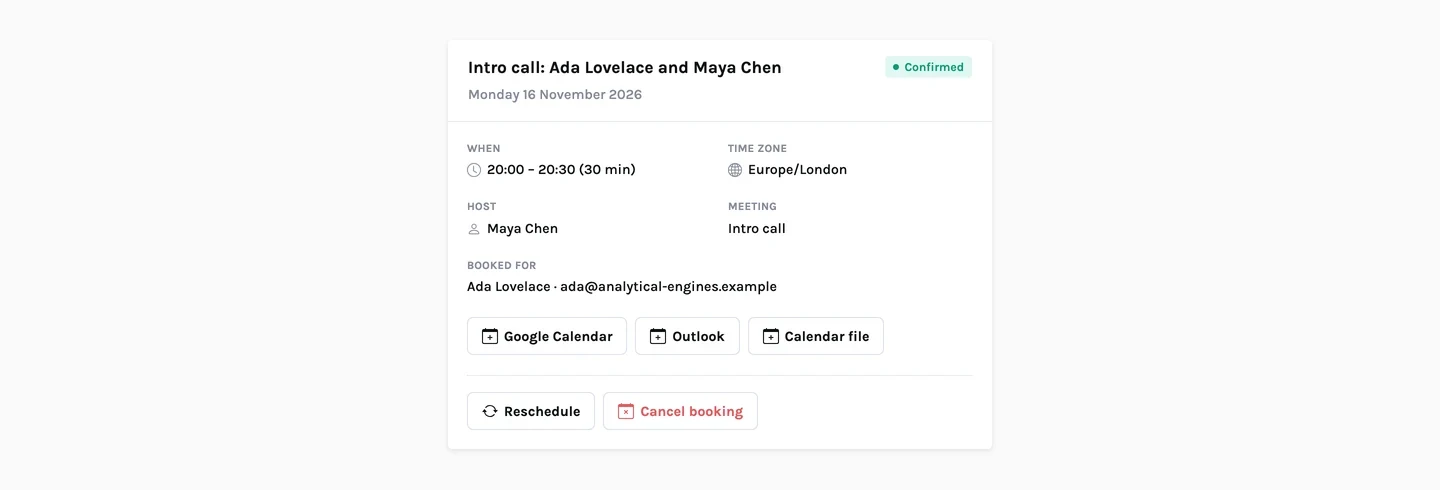
What Ada gets afterwards is the same as for any booking: a confirmation email in her time zone, a calendar file, and a manage link to reschedule or cancel. Maya gets her email and the event on her calendar.
The guardrail that matters
The assistant is a language model. Language models are good at understanding a sentence and can be confidently wrong about facts. A scheduling assistant that invents a free slot would be worse than none.
So the assistant does not decide what is free. It asks. The list of open times comes from the same availability rules that build your booking page, and a booking made in chat passes the same server-side check as one made with the form.
The same is true at the moment of booking. When Ada says "the second one", the server checks that 14:30 is still open, reading the calendar fresh. If someone took it a minute ago, the booking is refused. How that check works.
The assistant can only offer and book times that are genuinely open.
What it cannot do
| It cannot | Why |
|---|---|
| Book outside your hours | It can only book a time the availability rules offer |
| Ignore your minimum notice, buffers or daily limit | Those rules are applied before it sees a single slot |
| Double-book you | Every booking is re-checked on the server at the moment it is made |
| Book for a team | There is no team scheduling in CalFlare yet |
| Take a payment | There are no paid bookings in CalFlare yet |
| Run without limit | Usage is capped per day |
Limits on use
AI features cost money to run and are an obvious target for abuse on a public page. So usage is capped.
- Each host has a daily allowance for the assistant in the console.
- The chat on a booking page has daily caps too, for each visitor and for the page as a whole.
- The public chat is rate-limited per address, like the booking form.
If a cap is reached, the chat stops for the day. The calendar and the booking form are not affected, so people can still book.
When to use it, and when not
- Use it for quick changes you can say in a sentence, and for questions about the week ahead.
- Use the screens for anything detailed: building an event type, writing intake questions, setting several ranges on one day.
- Offer chat to invitees if your audience likes to ask rather than browse. Nothing is lost for those who do not.
- Ask the assistant to block a time, then confirm the override on the Availability screen.
- Open your booking page in a private window and book a test meeting through chat.
- Check that the confirmation email and calendar event look the same as a normal booking.
More about the feature: AI scheduling assistant. More about limits on public pages: Security.
Try a sentence
Sign in, open the assistant and type "what's on next week". CalFlare is free to get started.
Get started free