A booking link is generous by default. Tell it you work 9 to 5 and it will happily sell every half hour of that to whoever asks first. Eight hours of open time is sixteen 30-minute meetings, back to back, some booked for ten minutes from now.
Nobody wants that day. Four settings stand between your hours and that outcome. This post works through each with numbers, using one example all the way down.
The example
Maya takes 30-minute calls. Her hours are 9:00 to 12:00 and 13:00 to 17:00. On the Tuesday in question she already has a team meeting on her calendar from 10:00 to 11:00.
| Setting | Value |
|---|---|
| Length | 30 minutes |
| Start-time spacing | 30 minutes |
| Buffer before / after | 15 / 15 minutes |
| Minimum notice | 4 hours |
| Daily limit | 4 |
| Booking window | 30 days |
Start with no limits
With only hours and spacing, the candidate start times are every half hour that leaves room for a 30-minute meeting:
| Block | Start times | Count |
|---|---|---|
| 9:00 to 12:00 | 9:00, 9:30, 10:00, 10:30, 11:00, 11:30 | 6 |
| 13:00 to 17:00 | 13:00, 13:30, 14:00, 14:30, 15:00, 15:30, 16:00, 16:30 | 8 |
Fourteen possible meetings. The team meeting removes 10:00 and 10:30, leaving twelve.
Buffers: room around every meeting
A buffer is free time that must exist before and after a meeting. A start time is offered only if the meeting plus both buffers clears everything already on your calendar.
Now someone books 14:00. Watch what happens to its neighbours.
Spacing and buffers work together
With 30-minute spacing, a 15-minute buffer rounds up to a 30-minute gap, because the next start time on offer is half an hour later. If Maya sets spacing to 15 minutes, 14:45 becomes a start time. It needs 14:30 to 15:30 free, which it has, so it is offered. Finer spacing uses your day more tightly. Coarser spacing gives tidier start times. Choose on purpose.
Two more things about buffers. They are measured against events on your calendar, not only against CalFlare bookings, so the team meeting gets breathing room too. And they do not shrink your hours: 11:30 is offered although its buffer runs to 12:15, past the end of the morning block.
Minimum notice: no surprises
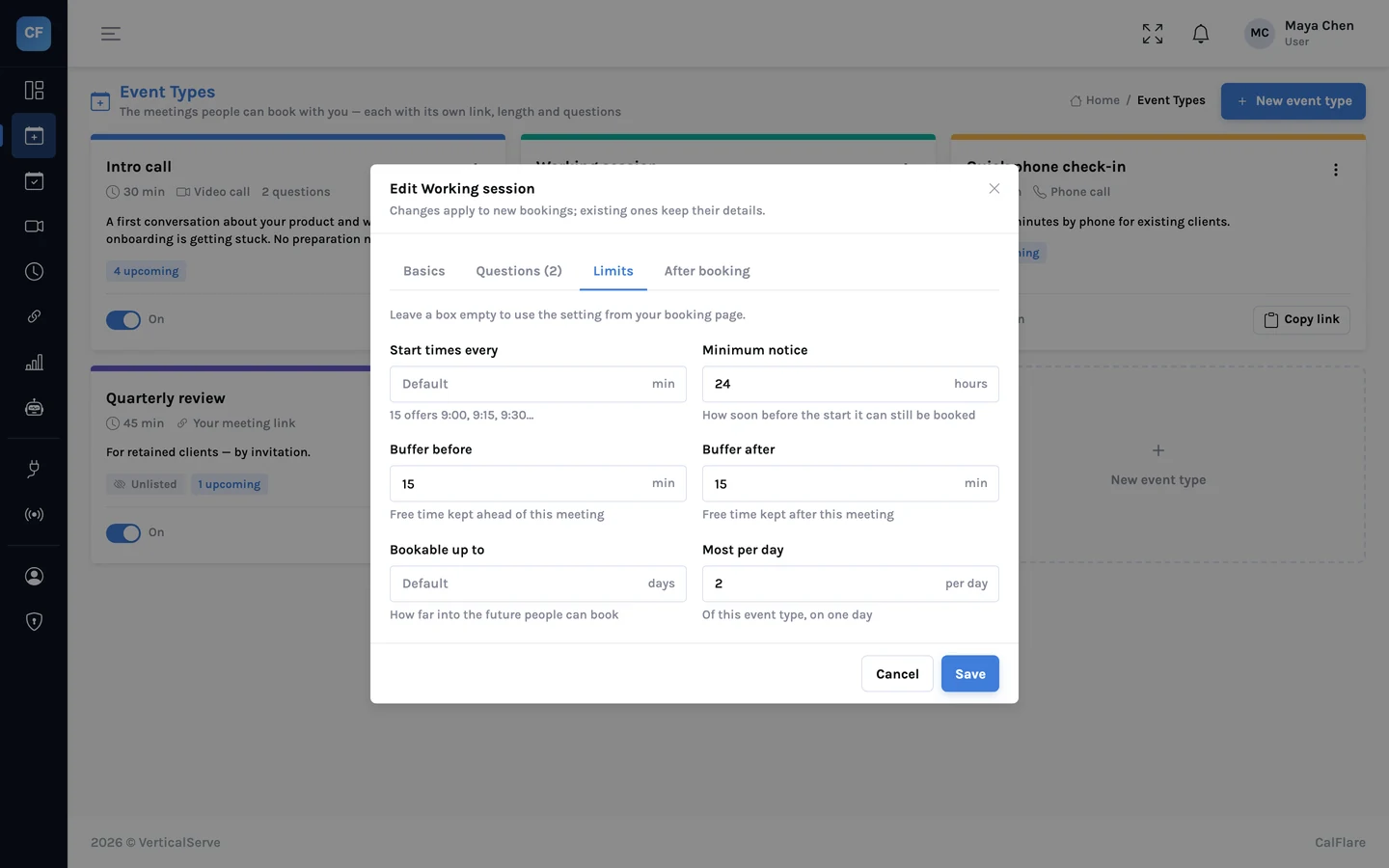
Minimum notice is the shortest gap between someone booking and the meeting starting. Maya's is 4 hours.
Notice is the setting people most often leave at zero and regret. Pick the number by asking how much warning you need to do the meeting well. For a call with a stranger that may be a day. For a quick call with a client it may be an hour.
Daily limit: a cap on the count
Buffers space meetings out. They do not limit how many there are. The daily limit does: once that many bookings exist on a day, the day shows no more times.
The limit counts bookings made through CalFlare, by your own calendar day. The team meeting does not use up one of the four. An event type can have its own daily limit, so you can allow four check-ins a day but only two intro calls.
Booking window: how far ahead
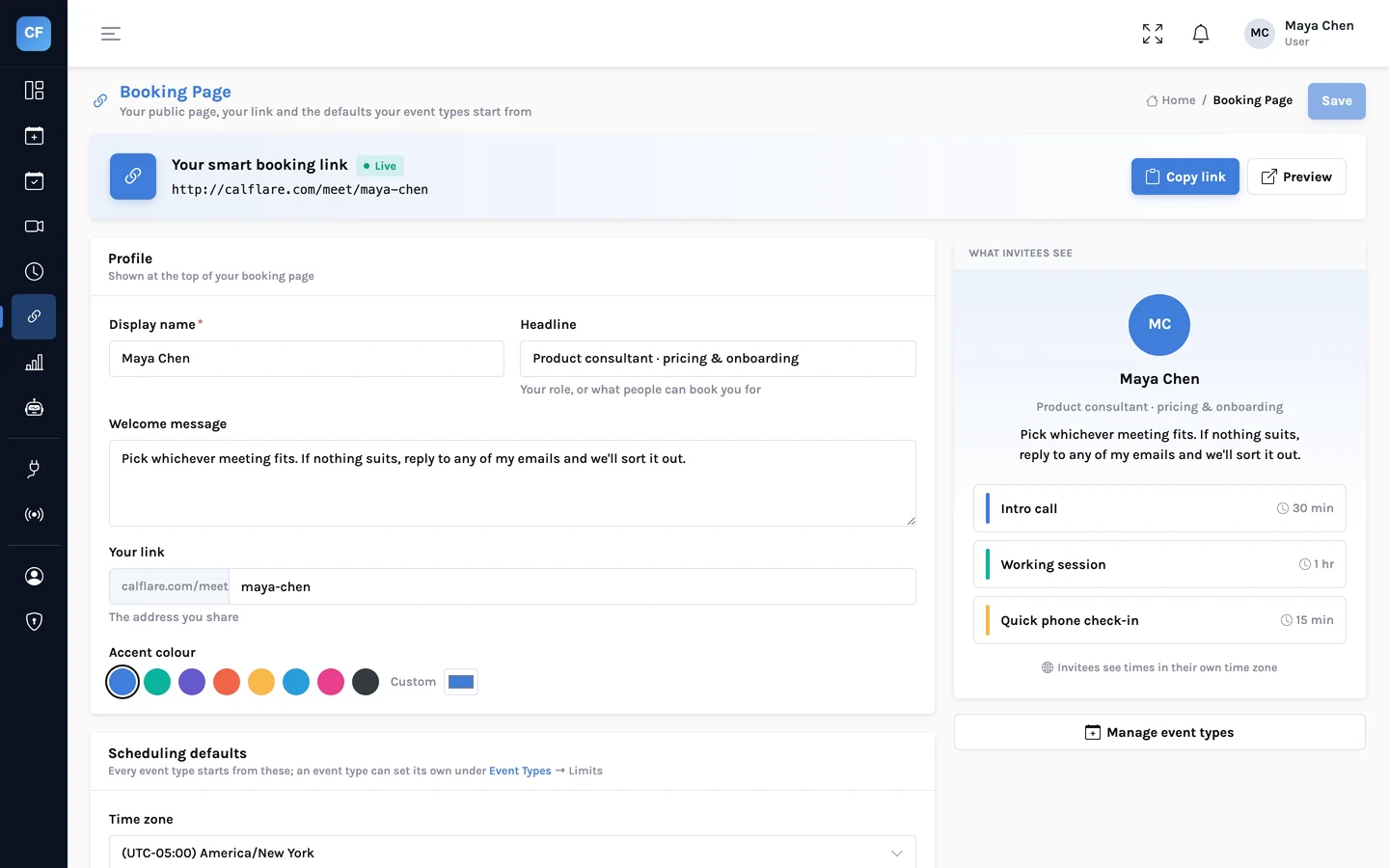
The booking window is how far into the future people can book. At 30 days, a visitor on 1 March sees dates up to 31 March. A short window keeps you from committing to dates you cannot predict. A long one suits meetings people plan well ahead.
All four together
| Setting | Question it answers | Maya's value | Effect on her Tuesday |
|---|---|---|---|
| Buffers | How much room around each meeting? | 15 / 15 min | 12 start times become 10 |
| Minimum notice | How much warning? | 4 hours | Same-day times disappear as the day goes on |
| Daily limit | How many at most? | 4 | The day closes after the fourth booking |
| Booking window | How far ahead? | 30 days | Later dates are not shown |
Each rule only ever removes times. None can open a time outside your hours or on top of something on your calendar. And all of them are checked again on the server when someone confirms, so a page left open for an hour cannot book inside your notice period. More on that re-check.
- Open your own booking page and count the times on a normal day. Is that a day you would want?
- Check a day that already has meetings. Are the gaps where you expect?
- Check today. Is the first available time far enough away?
Your hours say when you could meet. These four settings say when you should.
For complete setups that use these settings, see three event-type setups.
Set limits before you share the link
Create an event type, enter your four numbers and look at your booking page as a visitor would.
Get started free