Most meetings open the same way. "So, tell me a bit about what you're looking for." Five minutes later the real conversation starts.
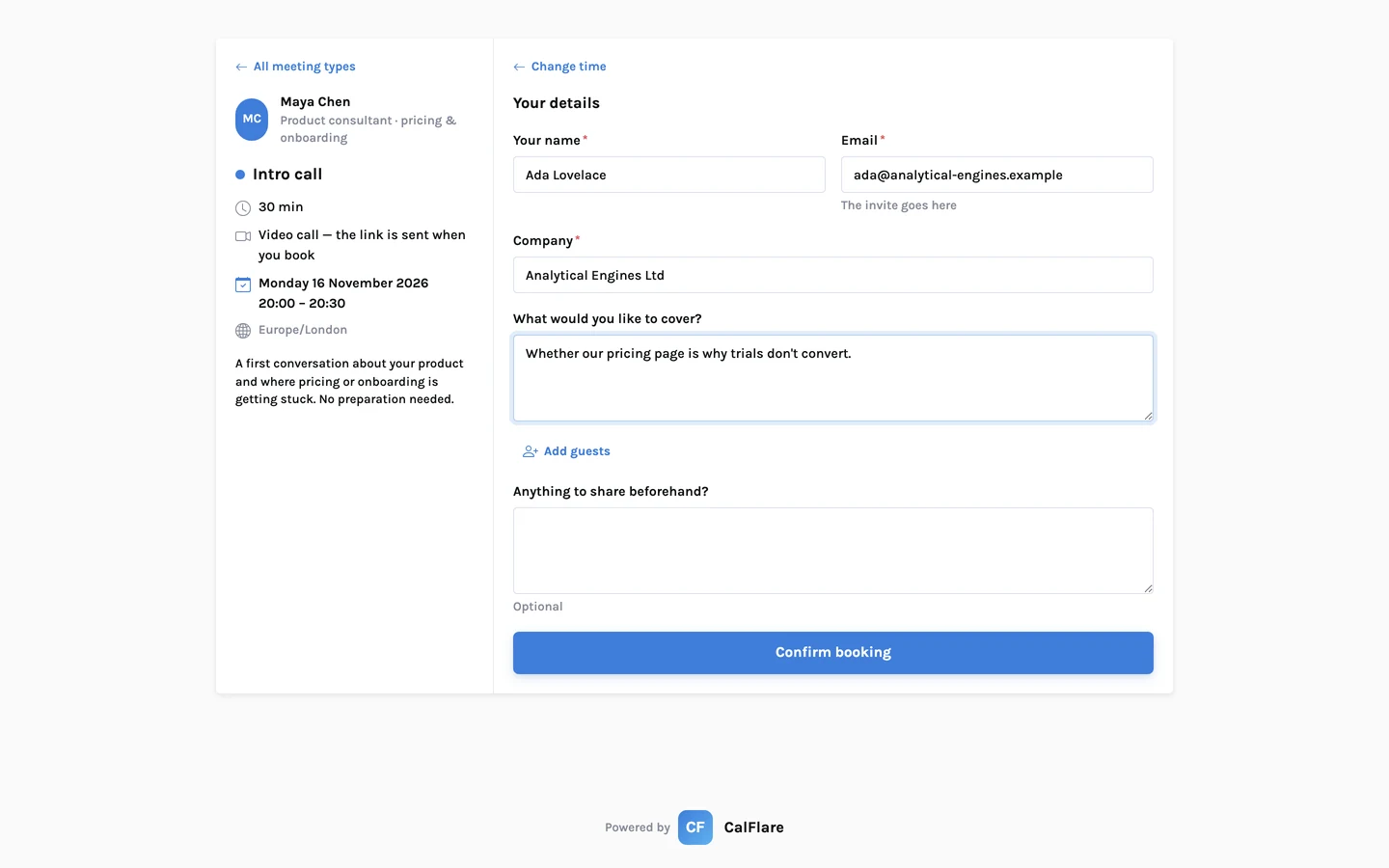
Those five minutes are not small talk. They are an intake form, spoken aloud, with nobody writing the answers down. An intake question on the booking form moves that step to before the meeting, where it costs the invitee thirty seconds and gives you time to prepare.
In CalFlare each event type can have up to 10 questions of its own. This post is about choosing them well, because a bad form is worse than none.
The four kinds of question
| Type | Use it for | Example |
|---|---|---|
| Text | A short fact | Company name |
| Long text | Something that needs a sentence or two | What would you like to get out of this call? |
| Dropdown | A choice from a fixed list | Which plan are you on? |
| Phone | A number to call | Best number to reach you |
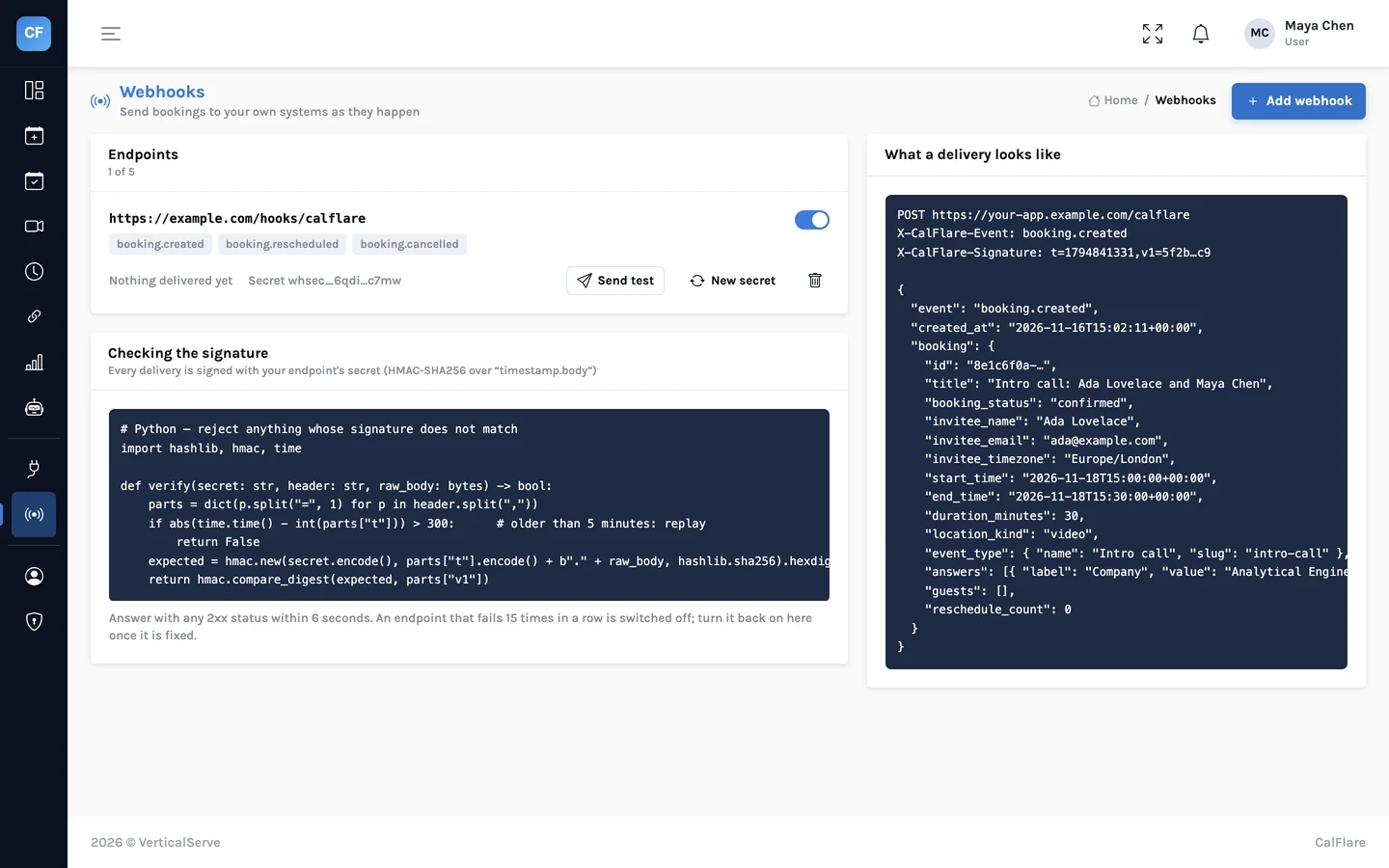
Each question is either required or optional. The invitee's answers arrive in your confirmation email, sit on the booking in the console, are written into the calendar event, and are included in webhook payloads.
One test for every question
Before adding a question, ask: what will I do differently depending on the answer?
If the answer changes how you prepare, who you bring, or whether the meeting should happen at all, keep the question. If you would simply nod and move on, cut it.
How did you hear about us? · Job title · Company size · Industry · Budget · Timeline · Anything else?
Company · What would you like to get out of this call?
The first form is seven fields of data collection before a stranger has spoken to you. Some people will give up. The second takes thirty seconds and tells you what to read up on.
Required or optional
Make a question required only if the meeting cannot go well without the answer.
- Required: a phone number for a phone call. The role, for a screening interview. The account, for a support call.
- Optional: anything that is nice to know. "Anything specific to cover?" should never block a booking.
Every required field loses someone
We have no statistic to quote and will not invent one. The reasoning is simple: each required field is one more reason to close the tab. Spend your required fields carefully.
Dropdowns: when the answer has a shape
Free text gives you "PM", "Product", "product manager" and "Sr. PM (Growth)". A dropdown gives you one of four values. Use a dropdown when you will sort or route by the answer, and keep the list short. Add an "Other" choice so nobody has to lie.
Question sets by role
What not to ask
- Anything sensitive. Answers are sent to you by email and written into the calendar event. Do not ask for passwords, card numbers, identity numbers or health details on a booking form.
- Anything you already have. Name and email are on every booking. Guests have their own field. There is a notes field too.
- Anything you can look up. If the company name tells you the industry, do not ask for the industry.
- Questions for your reporting, not for the meeting. "How did you hear about us?" helps a dashboard. It does not help the invitee.
Wording
- Write the question the way you would say it. "What would you like to get out of this call?" beats "Meeting objectives".
- Ask one thing per question. "Company and role" gets you one of the two.
- Say why, if it is not obvious. "Phone number, in case the video link fails" gets answered. "Phone number" gets skipped.
Different meetings, different forms
Questions belong to an event type, not to your whole page. A 10-minute phone call and a 60-minute workshop should not share a form. If you duplicate an event type to make a new one, check its questions before you share the new link.
If you know the person already, you can also save them typing: add their name and email to the link you send, and the form opens with both filled in. How prefilled links work.
- Each question changes what you will do.
- No more than two or three are required.
- Nothing sensitive is asked.
- You have filled in the form yourself, on a phone.
Ask on the form what you would otherwise ask in the first five minutes. Then use those five minutes.
For complete event-type settings around these forms, see three setups.
Add two questions to one event type
Then book yourself and read the confirmation email. You will see exactly what you get before every meeting.
Get started free